
Four routes get a ChatGPT table into Excel or Google Sheets. Three of them break: Excel's Split text to columns leaves cleanup, ChatGPT's CSV export trips on commas, manual retyping breeds typos. The fourth, pasting through Aiifi's converter, takes ten seconds and handles the edge cases that break the others.
Why does pasting a ChatGPT table give you one column in Excel?
Pasting a ChatGPT table into Excel gives you one column because ChatGPT writes in Markdown, and Excel can't read Markdown. What you copy is a single block of text where every row is one line, with cells separated by pipe characters. Excel treats each line as one cell, so a four-row table lands in cells A1 through A5 with the column dividers still visible inside the text.
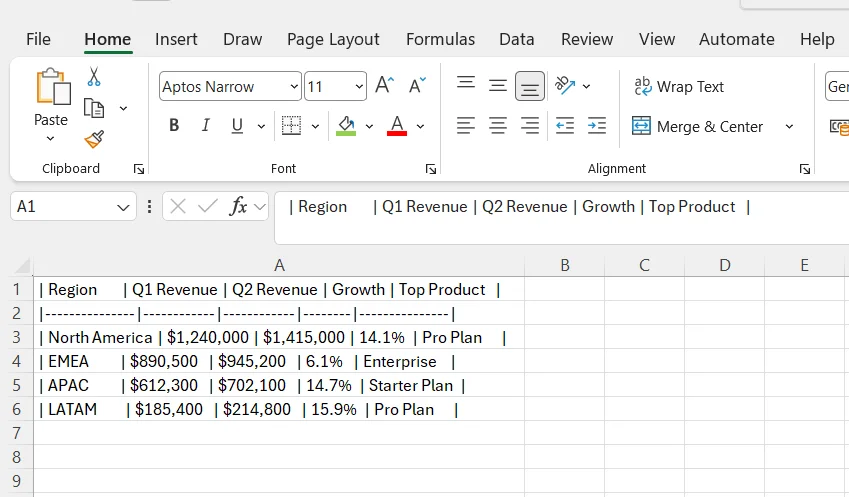
The formula bar in the default paste shows that cell A1 contains | Region | Q1 Revenue | Q2 Revenue | Growth | Top Product | as plain text. Excel only splits a paste into columns when the source uses tab characters between cells. ChatGPT produces pipes and dashes, not tabs, so Excel treats every row as a single block of text.
Google Sheets behaves the same way. The fix: paste through our converter. One click, clean grid.
How do you copy a ChatGPT table into Excel?
To copy a ChatGPT table into Excel, paste it through our ChatGPT Table to Excel converter and copy the output into Excel. Ten seconds, no signup, clean paste.
- In ChatGPT, hover the table and click the copy icon, or select the text and copy it.
- Open our converter and paste into the input box. It detects the table, strips the divider row of dashes, and shows a preview.
- Click Copy for Excel or Sheets. The output is now tab-separated.
- In Excel, click the cell where you want the table to start and press Ctrl+V. The table lands across the right number of columns with the header in row 1.
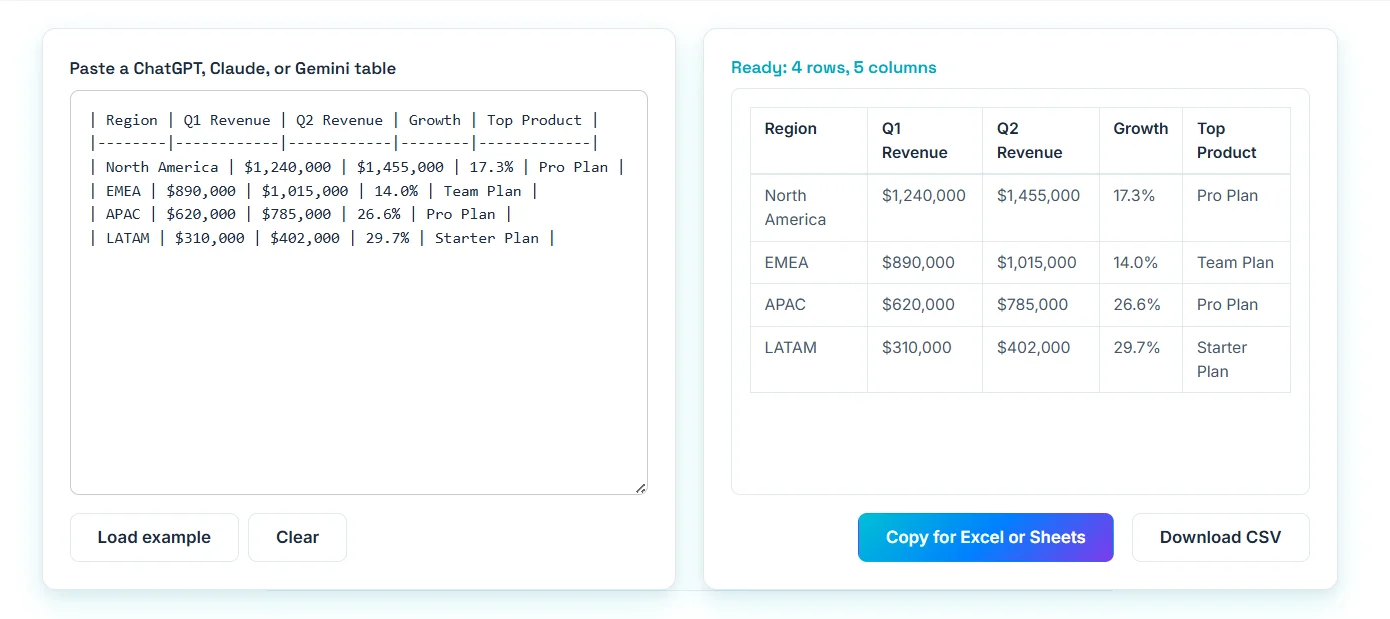
Beyond the table preview, our converter also handles the small things that trip up manual fixes. Currency symbols, comma thousand separators, percentage signs, and hyphenated text all survive intact. Need a file instead of a paste? Click Download CSV, encoded so Excel reads accented characters correctly on the first open.
How do you copy a ChatGPT table into Google Sheets?
To copy a ChatGPT table into Google Sheets, paste it through our converter and copy the output into Sheets. Ten seconds, no cleanup.
- Copy the table from ChatGPT.
- Paste into our converter, then click Copy for Excel or Sheets.
- Click into a cell in your sheet and press Ctrl+V on Windows or Cmd+V on Mac.
Already pasted the raw Markdown and staring at pipes in column A? Don't bother with Sheets' Split text to columns. You'd still have to delete the divider row of dashes and any repeated headers by hand. Faster path: copy the raw text out, paste into our converter, click once, paste back into Sheets.
What are the 4 ways to export a ChatGPT table to Excel?
There are four common ways to get a ChatGPT table into Excel or Google Sheets. One works in ten seconds. The other three each fail in a specific way.
| Method | Speed | Result | Catch |
|---|---|---|---|
| Aiifi converter | 10 seconds | Clean grid | None |
| Split text to columns | 30 to 60 seconds | Grid plus cleanup | Dashes and repeat headers stay |
| Ask ChatGPT for CSV | 2 to 3 re-prompts | Fragile output | Breaks on commas and quotes |
| Manual retyping | Slowest | Retyped table | Typos creep in |
Converter vs Split text to columns vs CSV: which method should you use?
Use our converter every time. The other three are around because people don't know our converter exists yet, not because they're better tools.
Split text to columns looks convenient because it lives inside Excel, but it leaves the divider row in your data, ignores any repeated header from a Continue split, and forces you to clean both up by hand. On a long ChatGPT response, that's three or four extra deletions every time. Our converter strips both in one paste.
Ask ChatGPT for CSV sounds tidy until a product name contains a comma or a description contains a quote, and the export breaks. ChatGPT's CSV quoting is inconsistent across sessions: some cells get wrapped, others don't. You debug the export instead of using the data. Markdown is more reliable because the pipe character is rare in normal text, which is exactly why our converter parses it.
Manual retyping is the worst option even on a five-row table. Typos compound, and you don't get those minutes back. Open the converter, paste, copy, paste. Done.
Frequently Asked Questions
Can ChatGPT export tables directly to Excel?
ChatGPT cannot export tables directly to Excel from a standard chat reply, which returns Markdown text instead of a spreadsheet file. It can produce a downloadable .xlsx file via Code Interpreter or Advanced Data Analysis, but the standard reply always needs converting before Excel reads it as a grid. Our converter does that in one paste.
Can you copy a Claude or Gemini table into Excel the same way?
Yes. Claude and Gemini both output tables as Markdown using the same pipe-delimited convention as ChatGPT, so the same conversion works. Our converter parses any GitHub-flavored Markdown table and a few looser variants too. If a model emits an HTML table instead of Markdown, copy from the rendered table rather than the source view and our converter will handle it.
Can the converter handle large ChatGPT tables (thousands of rows)?
Yes, within reason. The conversion is a single pass over the text, so a few thousand rows finish in well under a second on any current laptop. Browser clipboard limits are usually the bottleneck, not the parser. For tables that ran past Continue and now span several ChatGPT messages, paste each chunk in sequence and the duplicate-header detection will keep the output clean.
How does the converter handle commas, quotes, and line breaks in cells?
Our converter preserves commas, quotes, and percentage signs because it splits only on the pipe character. The CSV download follows RFC 4180: any cell containing a comma, a quote, or a line break is wrapped in double quotes, with internal quotes doubled. That is the same format Excel writes when you save a sheet as CSV, so saving and re-opening doesn't break anything.
Is the ChatGPT-to-Excel converter safe for confidential data?
Yes. The ChatGPT-to-Excel converter runs entirely in your browser. The text is parsed by JavaScript on the page, the output is written to your clipboard, and your data is never sent to any server. You can verify this in your browser's network tab while using the converter. For more on what we do and do not collect, see our privacy page.
Why is my pasted data still all in one column?
If your data still lands in one column, you almost certainly sent the raw Markdown rather than the tab-separated output. Re-open our converter, drop your table in, click Copy for Excel or Sheets, then paste again into your sheet. The other common cause is a clipboard manager that strips formatting; in that case copy directly from the converter to Excel without an intermediate stop.
Should I just ask ChatGPT for CSV instead?
Asking ChatGPT for CSV puts you in a re-prompt loop. One export looks fine, the next has a misquoted cell that lands the import offset by one column, and you spend the afternoon writing escape-rule prompts that solve one bug and create another. Skip the loop. ChatGPT already produces clean Markdown by default, so paste that into our converter and let the parse run once.
Can I save the converted output as an .xlsx file directly?
CSV is the right output. .xlsx is a Microsoft binary format that locks the file to Excel; CSV opens cleanly in Excel, Google Sheets, Numbers, and every analytics tool, and our converter writes it with a UTF-8 byte-order mark so currency symbols and accented text survive on first open. If you specifically need .xlsx, save the CSV in Excel via File > Save As.
What to read next
For more practical AI tooling, browse the rest of Aiifi Labs. Our converter is free and runs in your browser. Spotted a parsing edge case we missed? Let us know.